

Starting from v3.1.0+, System Proxy is enabled by default for new users and Existing users retain their current preference settings.
1. Accessing proxy settings
- Open Bruno.
- Click on the Preferences section from the bottom left corner.
- Navigate to the Proxy tab in the sidebar.
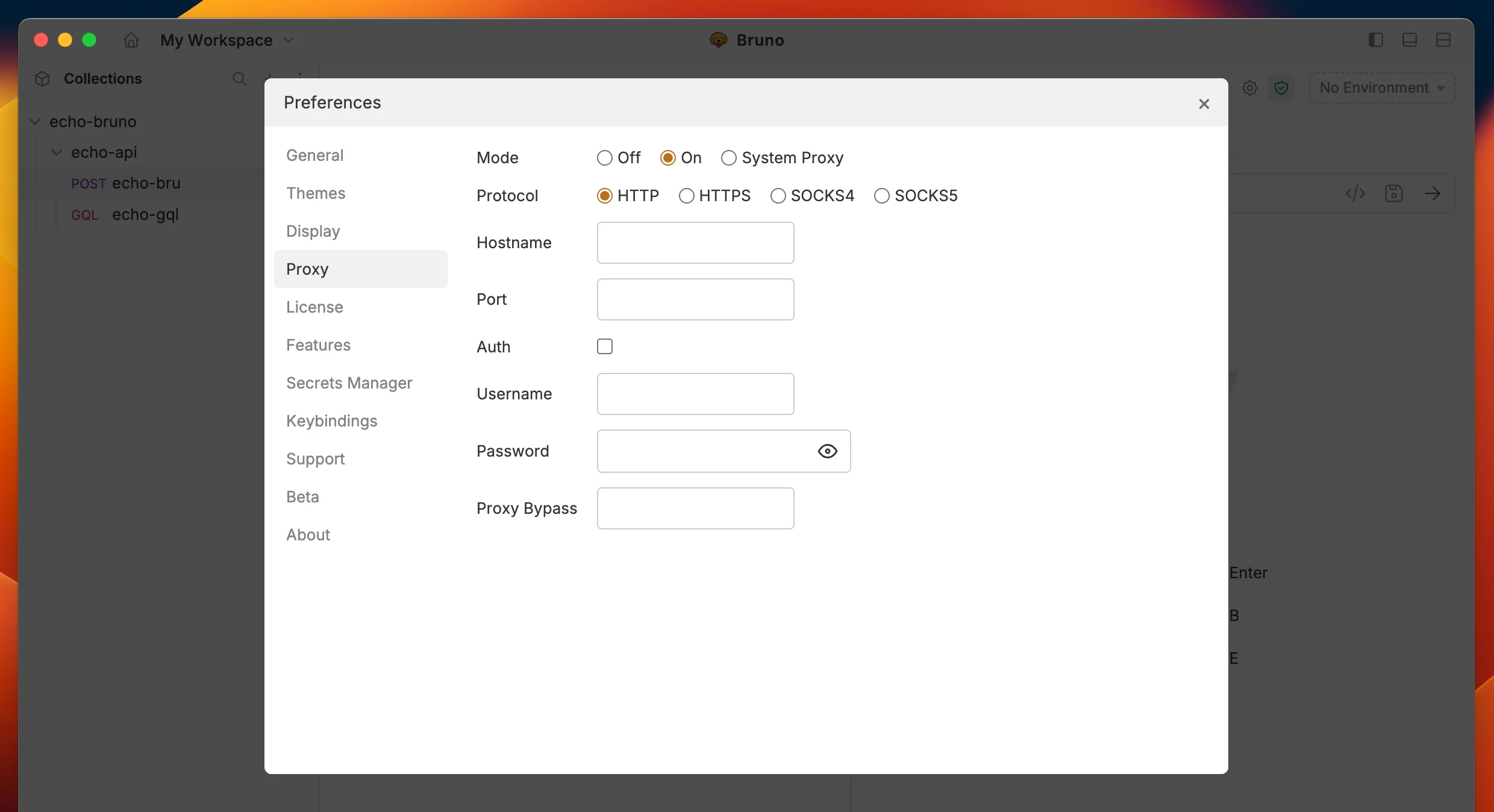
2. Configuring proxy mode
Bruno provides four options for proxy mode:- Off: Disables proxy usage.
- On: Enables proxy and routes requests through a manually configured proxy.
- System Proxy: Uses the system-wide proxy settings.
- PAC: Uses a Proxy Auto-Configuration (PAC) file to determine which proxy to use for each request.
.pac file that defines proxy rules.
3. Configuring PAC proxy
If you select PAC mode, you can provide a PAC file in two ways:- URL: Enter the URL to a remote PAC file (e.g.,
https://example.com/proxy.pac). Supported URL schemes arehttp://,https://, andfile://. - File: Click Choose file… to browse and select a local
.pacfile from your filesystem.
The proxy configuration is not saved until a valid PAC URL or file is selected. If you switch to PAC mode without providing a source, the previous proxy settings remain active.
4. Selecting proxy protocol
When using On (manual) mode, you can choose from the following proxy protocols:- HTTP
- HTTPS
- SOCKS4
- SOCKS5
5. Entering proxy details
Fill in the required fields:- Hostname: The proxy server’s domain or IP address (e.g.,
example.com). - Port: The port number for the proxy connection (e.g.,
3000).
6. Enabling authentication (optional)
If your proxy requires authentication:- Check the Auth checkbox.
- Enter the Username.
- Enter the Password (Click the eye icon to reveal the password if needed).
7. Configuring proxy at collection level
There may be instances in which your collection needs to use a different proxy than what you have configured globally. Configuring proxy settings at the collection level will override any configuration you’ve made in the preferences section. Below are instructions on proxy settings at the collection level:- Open the collection settings.
- Navigate to the Proxy tab.
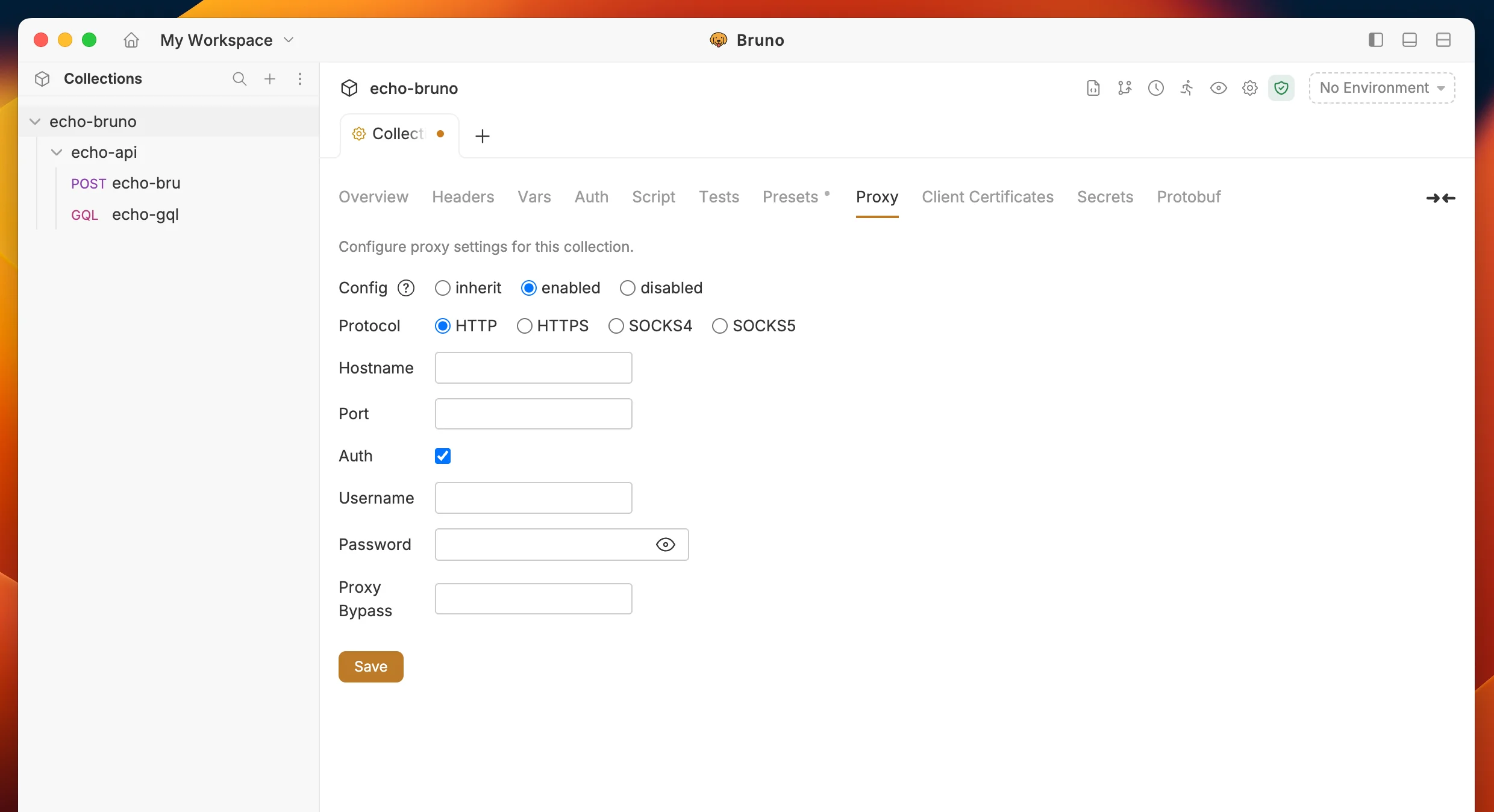
Choose the configuration mode
- inherit: Uses the main proxy settings from Preferences.
- Enabled: Enables a custom proxy for this collection.
- Disabled: Disables the proxy for this collection.
- Choose inherit, enabled, or disabled.
- Enter the Hostname, Port, Protocol, Username, and Password if needed.
- Click Save to apply the settings.